Rotating App Registration Credentials
How to renew expiring client secrets across Alira’s per-module App Registrations in Microsoft Entra — keeping each module connected and operational.
Overview
Alira creates a separate App Registration in Microsoft Entra for each module — Access Portal, Licence Portal, and Extended Identities. This ensures that API permissions are scoped precisely to what each module needs, with no shared credentials across modules.
Each App Registration uses a client secret to authenticate. Client secrets expire — typically after 12 or 24 months depending on the expiry date set when the secret was created. When a secret expires, the affected module will lose connection to your Entra tenant and stop functioning until the credentials are renewed.
What you’ll need
Access to Microsoft Entra ID (Entra Portal → App registrations) and Global Administrator or Application Administrator privileges in your tenant. You’ll also need access to the relevant module’s Settings page in Alira.
How it works
The process is the same for each module — find the App Registration using the Client ID shown in Alira’s Settings, create a new secret in Entra, copy the value, and paste it back into Alira with the updated expiry date.
Access Portal Enable plan
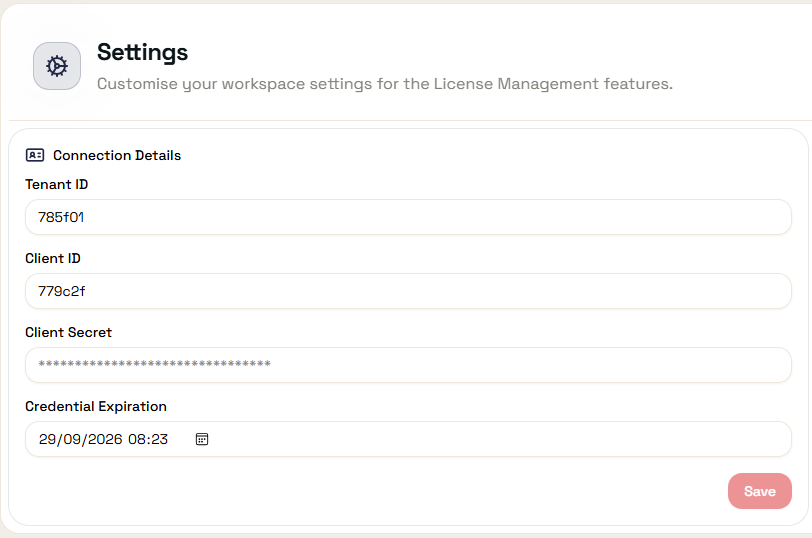
Navigate to Access Portal → Settings in Alira and note the Client ID — you’ll use this to find the correct App Registration in Entra.
Find the App Registration in Entra
- Go to Microsoft Entra ID → App registrations
- Select All applications and paste the Client ID from Alira into the search box
- Select the matching App Registration from the results
Create a new client secret
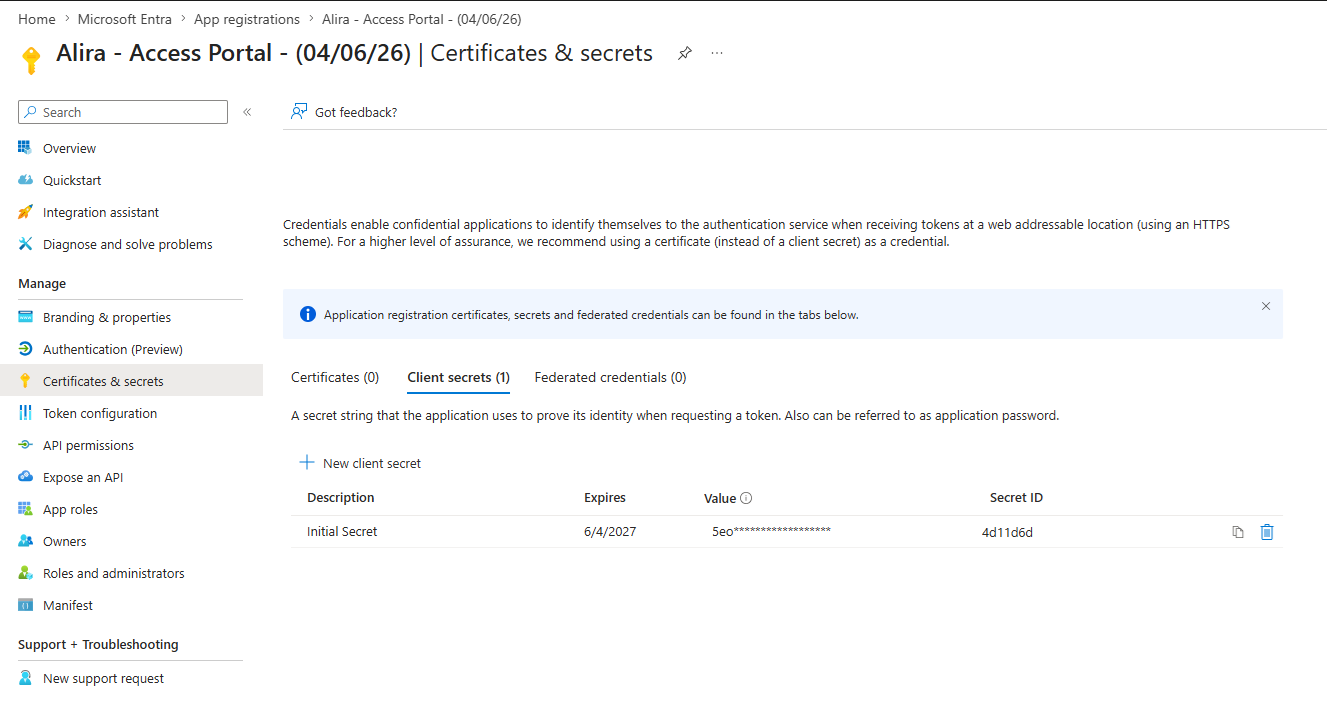
- In the App Registration, go to Certificates & secrets → Client secrets
- Click + New client secret
- Enter a description (e.g. Alira key 2) and choose an expiry period — 12 or 24 months is recommended
- Click Add
- Immediately copy the Value shown in the table — this is only visible once. If you navigate away, you’ll need to create another secret.
Update Alira with the new credentials
- Return to Alira →
Settings → Access Portal → Settings - Paste the new secret value into the Client Secret field
- Update the Credential Expiration date to match the expiry you set in Entra
- Click Save
- Confirm the Access Portal is working — browse to the Requests or Applications view and verify data loads correctly
- Once confirmed, return to Entra and delete the old secret
Licence Portal Pro plan
Navigate to Settings → License Management → Settings in Alira and note the Client ID.
Find the App Registration in Entra
- Go to Microsoft Entra ID → App registrations
- Select All applications and paste the Licence Portal Client ID from Alira into the search box
- Select the matching App Registration — it will be named something like Your Org — License Management — (date)
Create a new client secret
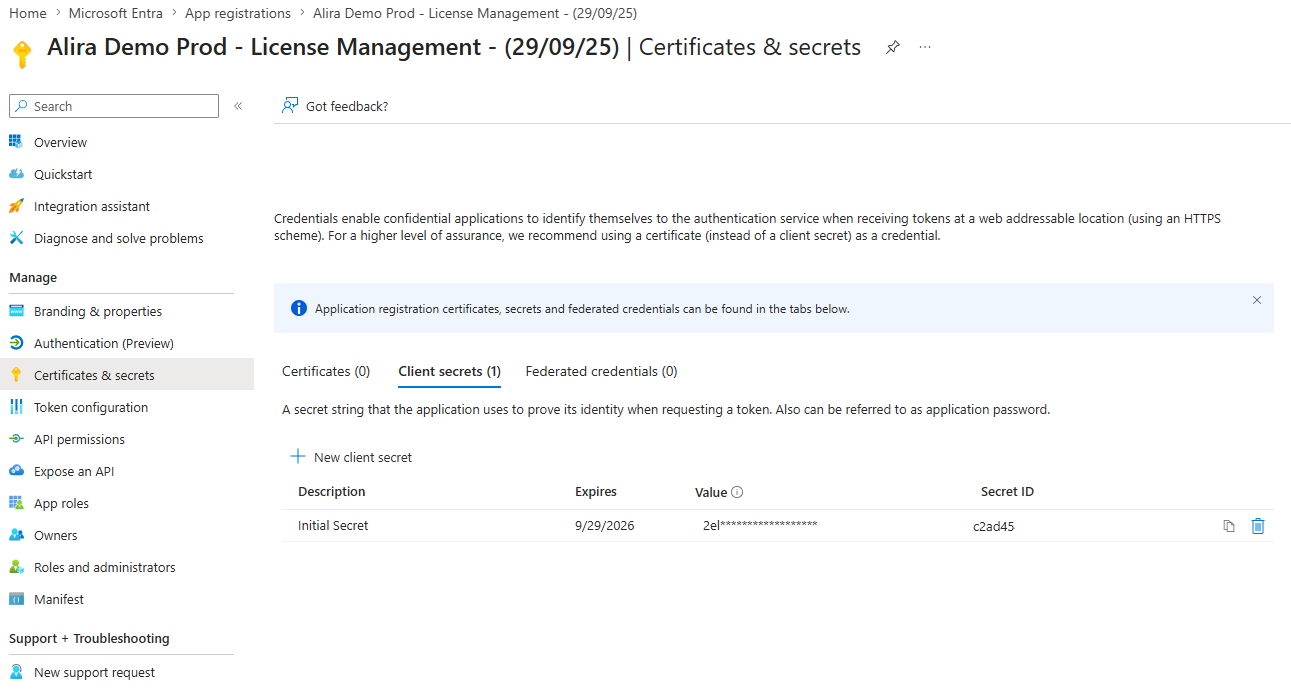
- In the App Registration, go to Certificates & secrets → Client secrets
- Click + New client secret
- Enter a description and choose your preferred expiry period
- Click Add
- Immediately copy the Value — visible once only
Update Alira with the new credentials
- Return to Alira →
Settings → License Management → Settings - Paste the new secret value into the Client Secret field
- Update the Credential Expiration date
- Click Save
- Confirm the Licence Portal is working — check that the Dashboard or Licences view loads data
- Return to Entra and delete the old secret
Extended Identities Ultimate plan
Navigate to Settings → Extended Identities → Settings in Alira and note the Client ID.
Find the App Registration in Entra
- Go to Microsoft Entra ID → App registrations
- Select All applications and paste the Extended Identities Client ID into the search box
- Select the matching App Registration from the results
Create a new client secret
- In the App Registration, go to Certificates & secrets → Client secrets
- Click + New client secret
- Enter a description and choose your preferred expiry period
- Click Add
- Immediately copy the Value — visible once only
Update Alira with the new credentials
- Return to Alira →
Settings → Extended Identities → Settings - Paste the new secret value into the Client Secret field
- Update the Credential Expiration date
- Click Save
- Confirm Extended Identities is working — check that Companies or Guests load correctly
- Return to Entra and delete the old secret
Tips & Reminders
Set a calendar reminder
Client secrets don’t send expiry alerts by default. Set a calendar reminder 30 days before the Credential Expiration date shown in each module’s Settings to give yourself time to rotate before the connection drops.
Each module is independent
Alira uses a separate App Registration per module — rotating the Access Portal secret does not affect the Licence Portal or Extended Identities, and vice versa. Rotate each module independently.
The Client ID never changes
Only the Client Secret and Credential Expiration need updating. The Tenant ID and Client ID remain the same — you don’t need to recreate the App Registration.
Naming your secrets
Use a clear naming convention when creating secrets — for example Alira key 2, Alira key 3 — so you can easily identify which is the current active secret when it’s time to rotate again.